Part 3: Setting up Sveltia CMS
Sveltia CMS is the git-based headless CMS I use for writing my blog posts (this one too). Of course, you’re still free to use Visual Studio Code (or even Vim) for writing your content: Hugo and its watching preview feature will allow you to immediately see what you’re writing (or even better, you can see the preview directly is VS Code).
However, using this CMS has other advantages:
- You manage publishing date, tags, comment enabling, summary, related posts and content directly from a web interface that shows you a preview
- Image providers integration like Unsplash: you just need to register an application and you’ll get an API key
- You can manage your posts locally and you can even post directly on your live instance on GitHub: Sveltia CMS supports a GitHub Personal Access Token (PAT) flow: you click “Sign in with Token” on the admin page and paste your PAT. The token is stored in the browser’s localStorage
Generate a GitHub PAT (one-time setup) #
- github.com → Settings → Developer Settings → Personal access tokens → Fine-grained tokens
- Generate a new token choosing your favorite name and the expiration
- Limit the repository access to only your blog repo
- Permissions: Contents → Read and Write
Configuration #
The CMS lives entirely in static/admin/ — Hugo copies it verbatim to public/admin/, served at: <username>.github.io/admin.
static/admin/index.html #
<!DOCTYPE html>
<html>
  <head>
    <meta charset="utf-8" />
    <meta name="viewport" content="width=device-width, initial-scale=1.0" />
    <meta name="robots" content="noindex" />
    <title>Blog Admin</title>
  </head>
  <body>
    <!-- Sveltia CMS -->
    <script src="https://unpkg.com/@sveltia/cms/dist/sveltia-cms.js"></script>
  </body>
</html>
static/admin/config.yml #
backend:
  name: github
  repo: chrisvoo/chrisvoo.github.io
  branch: main
  # No base_url needed — Personal Access Token auth requires no proxy

media_folder: "static/images/uploads"
public_folder: "/images/uploads"

collections:
    - name: "posts"
    label: "Blog Posts"
    folder: "content/posts"
    create: true
    slug: "{{slug}}"
    fields:
            - { name: "title",    label: "Title",        widget: "string" }
            - { name: "date",     label: "Date",          widget: "datetime" }
            - { name: "draft",    label: "Draft",         widget: "boolean", default: false }
            - { name: "tags",     label: "Tags",          widget: "list",    required: false }
            - { name: "summary",  label: "Summary",       widget: "text",    required: false }
            - { name: "comments", label: "Enable comments", widget: "boolean", default: true }
            - { name: "body",     label: "Content",       widget: "markdown" }
	    - label: "See Also (Related Posts)"
	      name: "see_also"
	      widget: "relation"
	      collection: "posts" # Targets this same collection
	      search_fields: ["title"]
	      value_field: "/posts/{{slug}}/" # Saves the URL format you wanted
	      multiple: true
	      required: false
The “See also” section #
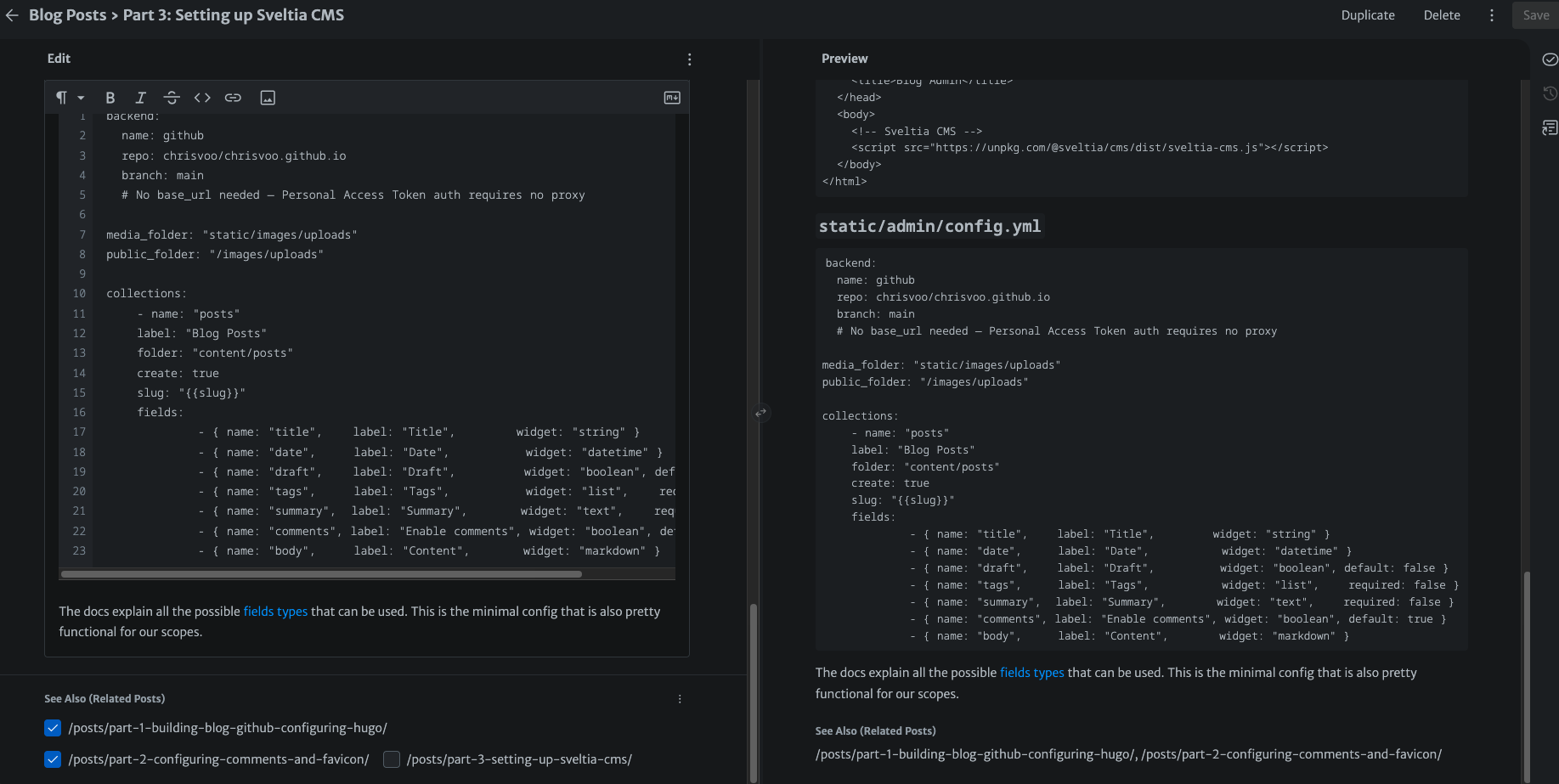
The docs explain all the possible fields types that can be used. I wanted to be able to show a list of related post at the bottom of a post.
- Start defining the section in the admin panel like in the config above. You’ll see a
see_alsofield of type relation that will hold for us a list of post. Sveltia CMS tracks how many entries are available in your target collection. To optimize data entry speed, it changes the UI layout dynamically:
- 5 or fewer items: Sveltia assumes it’s faster for you to just look at a quick list, so it renders them as checkboxes (for multiple selections) or radio buttons (for single selections).
- 6 or more items: Sveltia realizes a list would get messy. It automatically morphs the field into a dropdown menu with a live autocomplete search box.
- Create a new partial named
./layouts/_partials/see-also.html. This will hold the style of our section - Include the partials in
./layouts/_partials/comments.html
./layouts/_partials/see-also.html #
{{ with .Params.see_also }}
<div class="see-also-container">
    <span class="see-also-heading">See also:</span>
    <ul class="see-also-list">
      {{ range . }}
        {{ $page := $.Site.GetPage . }}
        {{ if $page }}
          <li>
            <a href="{{ $page.RelPermalink }}">{{ $page.Title }}</a>
          </li>
        {{ else }}
          <li>
            <a href="{{ . | relURL }}">{{ . }}</a>
          </li>
        {{ end }}
      {{ end }}
    </ul>
  </div>
{{ end }}
./layouts/_partials/comments.html #
{{ if .Params.comments | default true }}
    {{ partial "see-also.html" . }}
    <script src="https://giscus.app/client.js"
        data-repo="chrisvoo/chrisvoo.github.io"
        data-repo-id="<REPO_ID>"
        data-category="Blog comments"
        data-category-id="<CATEGORY_ID>"
        data-mapping="pathname"
        data-strict="0"
        data-reactions-enabled="1"
        data-emit-metadata="0"
        data-input-position="bottom"
        data-theme="preferred_color_scheme"
        data-lang="en"
        crossorigin="anonymous"
        async>
    </script>
{{ end }}